Download OnStreem TV App on Android TV or Firestick
Want to watch movies and TV shows on your big screen? 🎬 Follow this simple step-by-step guide to install the OnStream TV app on Android TV or Firestick.
🔹 Step 1: Install Downloader App
- 📥 Open Google Play Store (Android TV) or Amazon Appstore (Firestick)
- 🔎 Search for "Downloader by AFTVnews"
- ✅ Install the app on your device
🔹 Step 2: Open Downloader
- 🚀 Launch the Downloader app from your TV home screen
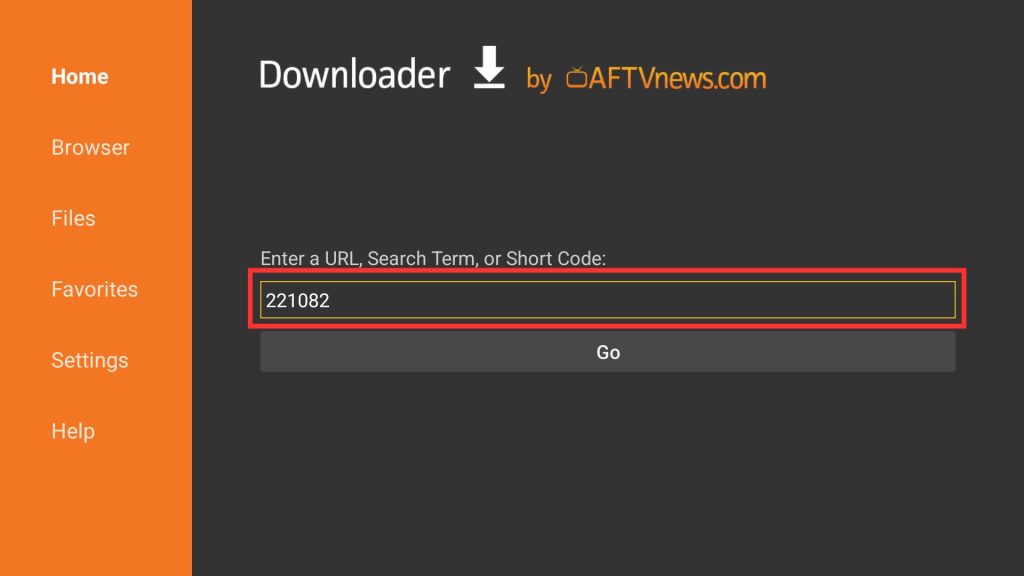
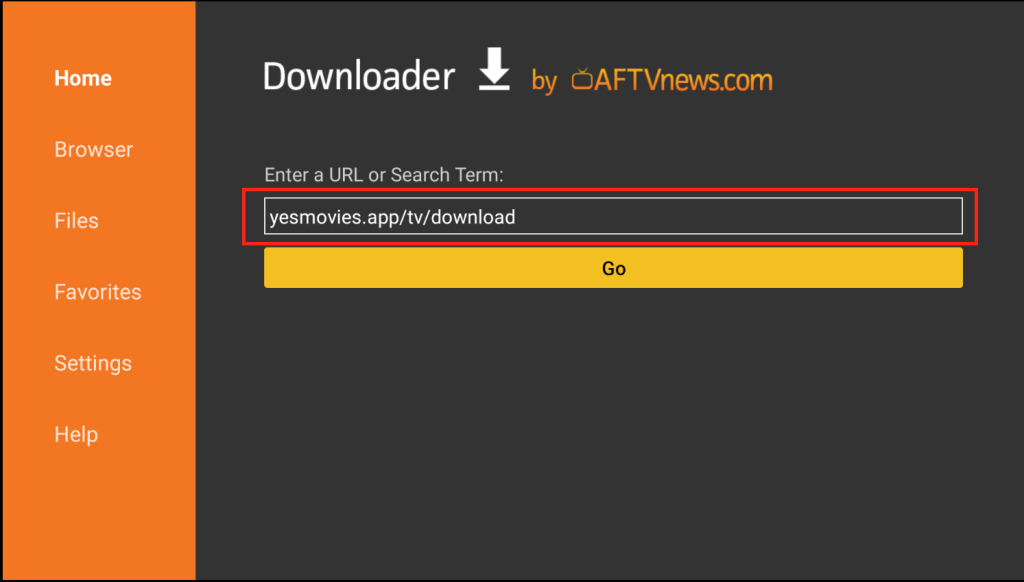
🔹 Step 3: Enter Code or Download URL
📸 See examples below:
OR
- 🔢 Enter this code: 221082
- 🌐 Or type this URL: yesmovies.app/tv/download
🔹 Step 4: Download & Install
- ▶️ Click Go and wait for the page to load
- 📦 Tap Install when prompted
🎉 Done! Your OnStream TV app is now installed and ready to stream on your TV.
💡 Tip: If installation fails, make sure Unknown Sources / Install Unknown Apps is enabled in your TV settings.
🔐 Login to OnStream TV App Using OTP (Mobile → TV)
Logging into your TV is super simple! Just follow these steps:
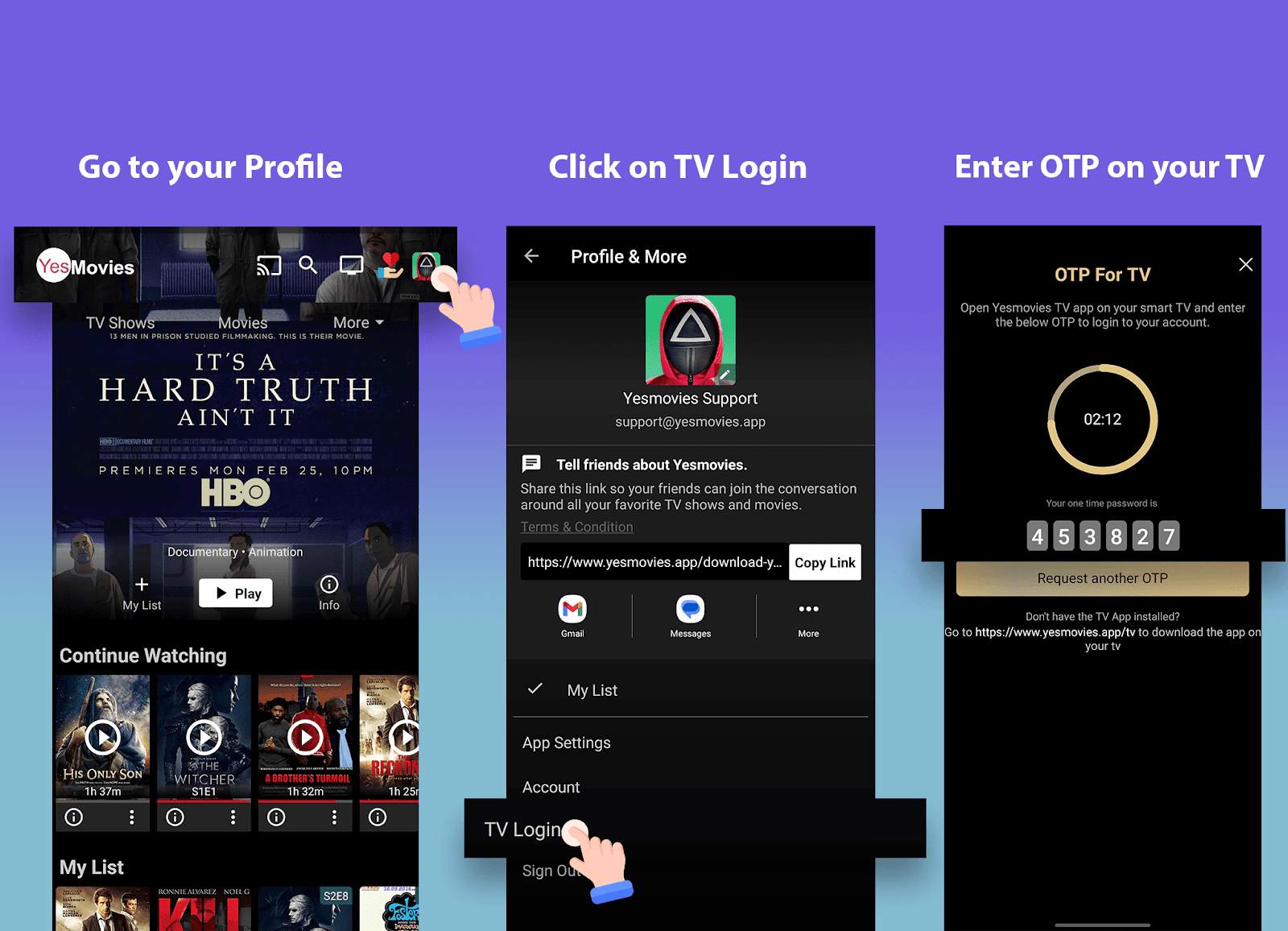
- 📱 Open the OnStream app on your mobile
- 👤 Go to Profile → TV Login
- 🔢 An OTP code will appear on your phone
- 📺 Enter that OTP on your TV screen
✨ Done! You’ll be signed in instantly.
📸 Screenshots are provided below for better understanding.
💬 Need help? Feel free to reach out anytime!
📺 How to Install OnStream TV App on Android TV & Firestick
Looking for the easiest way to install OnStream on your TV? This complete guide covers everything — from quick installation using Downloader to manual APK methods, plus common fixes and FAQs.
⭐ Before You Start
- 🌐 Make sure your TV device is connected to the internet
- ⚙️ Enable Install Unknown Apps (side loading option)
- ⬇️ Install the Downloader app (by AFTVnews)
🔥 Method 1: Install via Downloader (Recommended)
Step 1 — Install Downloader
- 📺 Android TV: Open Play Store → Search “Downloader” → Install
- 🔥 Firestick: Open Amazon Appstore → Search “Downloader” → Install
Step 2 — Open Downloader
Launch the app from your TV home screen.
Step 3 — Enter Code or URL
In the search box, enter:
- 👉 Code: 221082
- OR
- 👉 URL: yesmovies.app/tv/download
Step 4 — Install the App
- ▶️ Click Go
- ⏳ Wait for the page to load
- 📥 Tap Install
- 🚀 Open the app after installation
🎉 Your OnStream TV app is now ready to use!
🛠️ Method 2: Manual APK Installation (Alternative)
If Downloader doesn’t work, you can install the app manually:
- ⬇️ Download the APK file on your phone or computer
-
🔌 Transfer it using:
- USB Drive
- Send Files to TV app
- File Manager
- 📲 Open the APK file and tap Install
⚙️ Enable Unknown Sources (Important Step)
📺 Android TV
Settings → Apps → Special App Access → Install Unknown Apps → Enable for Downloader
🔥 Firestick
Settings → My Fire TV → Developer Options → Install Unknown Apps → Turn ON for Downloader
🎯 Why Choose OnStream TV App?
- 🎬 HD & Full HD streaming
- ⚡ Fast and smooth servers
- 📺 Designed for TV screens
- 🔌 Supports Android TV, Fire TV Stick, Chrome cast, TV Boxes, Projectors
❓ FAQs
1. Is OnStream available on the Play Store or
Amazon Store?
❌ No — you need to install it manually using Downloader
or
APK.
2. Does it work on all Android TVs?
✅ Yes — compatible with Sony, TCL, Hisense, Mi TV,
Realme
TV, and Google TV devices.
3. Is the APK safe?
🔒 Yes, if downloaded from the official OnStreem.com
website.
4. How to update the app?
🔄 Visit: yesmovies.app/tv/download and install the
latest
version.
5. Downloader showing connection
error?
⚠️ Possible reasons:
- VPN is turned ON
- Internet connection issue
- Wrong code or URL entered
- ISP is blocking the download